
Sildurs Vibrant Shaders Extreme: FPS, Settings, and Download
Sildurs Vibrant Shaders Extreme is the highest-cost standard preset in the Vibrant 2.01 lineup. Choose it for maximum shadows, volumetric light, reflections, and cinematic screenshots only after High already runs with steady frame times.
Verified author-published ZIP: Sildur’s Vibrant Shaders v2.01 Extreme, 245.4 KB, released June 22, 2026. This is the real Modrinth CDN file, not an installer.
Extreme sits at the top of the six-file Vibrant 2.01 family, above High and below no other standard preset. It uses the same author-published shader code family, but its defaults leave less performance headroom for high resolution, Distant Horizons, recording, resource packs, or heavy modpacks.
Version 2.01 is the current author-published Vibrant release verified for this guide on July 23, 2026. The Extreme ZIP is about 245.4 KB and comes from the official Modrinth CDN. Keep the ZIP compressed and use Iris or OptiFine; third-party installers are unnecessary.
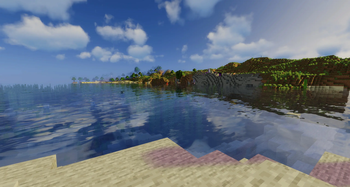
Can your PC run Sildurs Vibrant Shaders Extreme?
Extreme is a visual-quality profile, not a guaranteed FPS tier. Resolution and shadow workload usually matter more than RAM, while render distance, LOD mods, recording, thermals, and world complexity determine whether the result stays smooth after the first minute.
| Starting hardware situation | Recommended first test | What to watch |
|---|---|---|
| Older integrated graphics | Do not use Extreme; start with Basic Fast or Enhanced Fast | Extreme is outside the sensible workload for this class |
| Recent integrated graphics | Use Lite or Medium at reduced resolution | Treat Extreme as a screenshot-only experiment, not a gameplay target |
| Entry dedicated GPU | Try High first; Extreme only at 1080p and 8–10 chunks | Watch shadow, water, rain, and thermal limits |
| Midrange dedicated GPU | Extreme at 1080p after High is stable | Keep headroom for chunk loading and minimum frame times |
| High-end GPU or visual capture | Extreme at native resolution, then add distance carefully | Measure minimum frame time before increasing LOD or recording |
A stable 45 FPS can feel better than a fluctuating counter that jumps between 90 and 30. Watch pacing while turning, entering forests, crossing water, and loading chunks. If movement stutters even when the average looks acceptable, lower the most expensive setting and repeat the same route.
Laptop power mode matters. Test while plugged in, confirm Minecraft uses the intended GPU, and let the world finish loading before judging Extreme. Thermal throttling can make the first minute look fast and the fifth minute look much worse.
Extreme vs High vs Medium: protect frame-time headroom
Use Extreme only when the image improvement is visible to you and the same demanding route remains stable. High or Medium is usually the better gameplay preset when you also want larger render distance, mods, or recording.
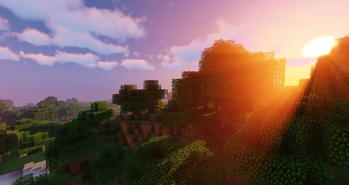
Choose Vibrant Lite when Extreme is too heavy
Lite keeps the Vibrant color and atmosphere with a lower default workload, making it the correct fallback when Extreme cannot hold stable frame times.
- Best fallback from Extreme
- Lower GPU cost on the same setup
- Useful for recording, modpacks, and higher distance
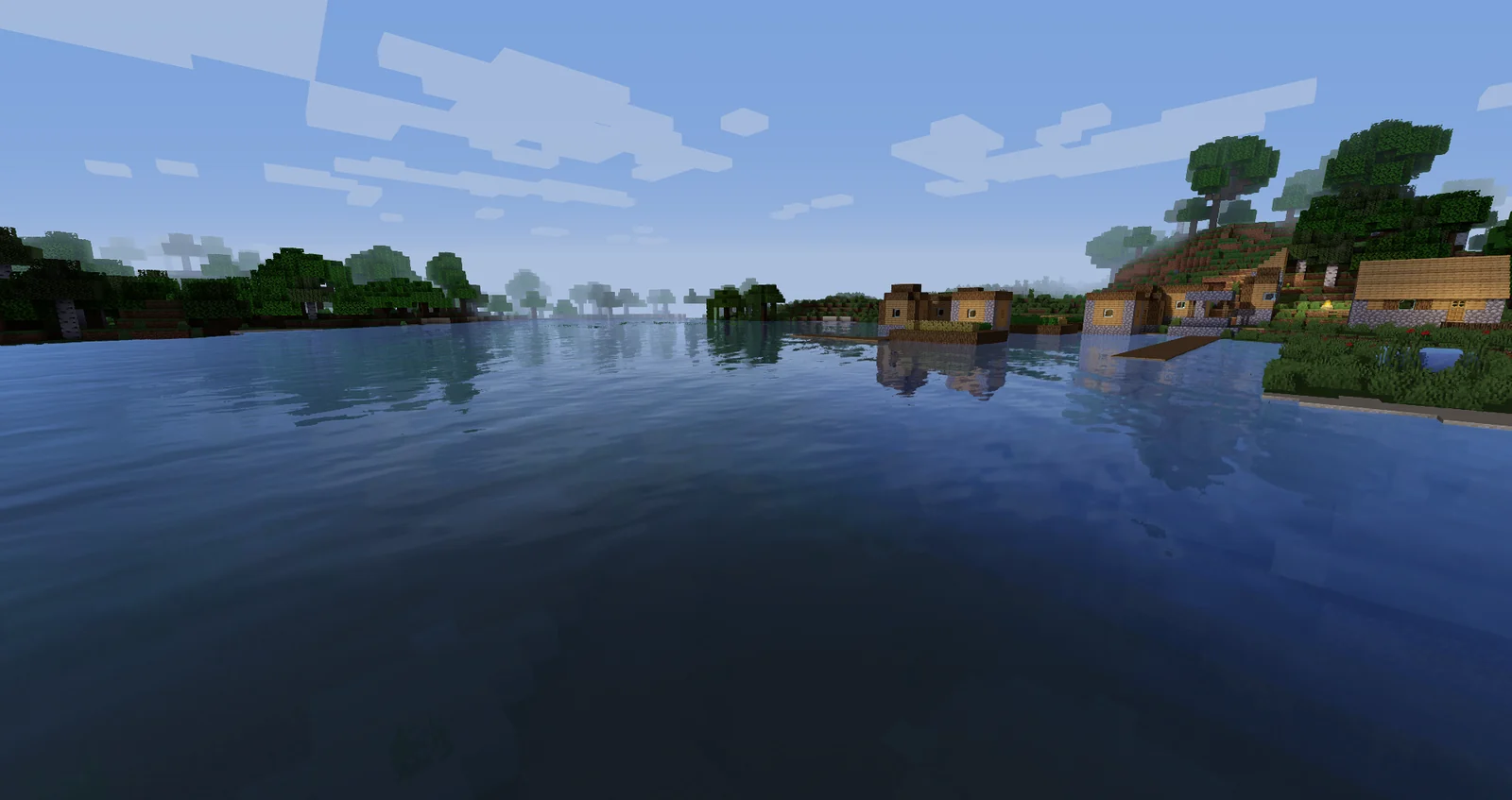
Use Enhanced Default Fast for steadier play
Enhanced Default keeps a vanilla-like look with improved light, shadows, water, and sky. It is a practical fallback when Extreme requires too many compromises.
- Lower rendering cost
- Less dramatic color grading
- Useful for integrated graphics and large worlds
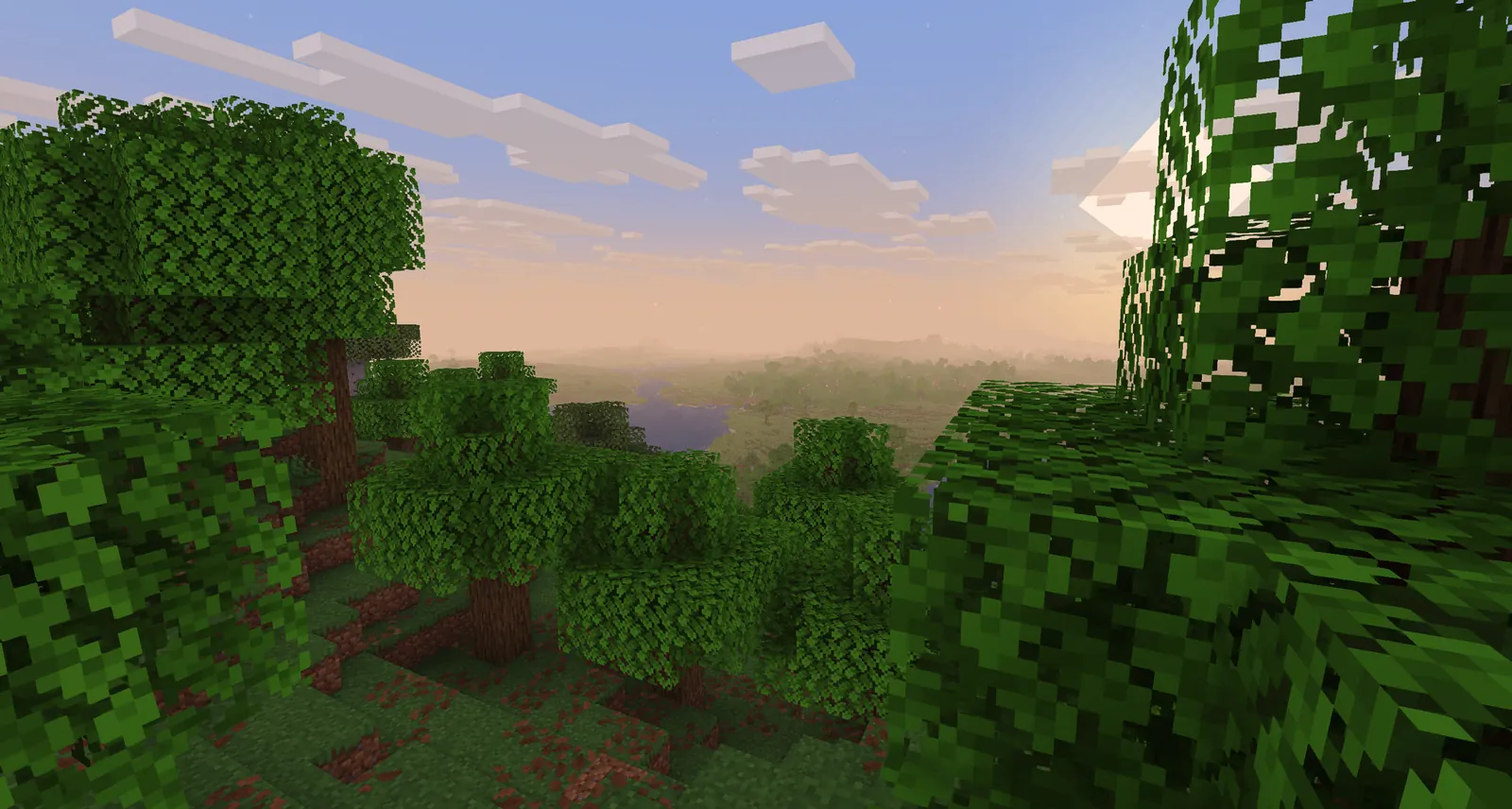
Use Basic Fast when gameplay comes first
Basic Fast makes fewer rendering changes and leaves more room for high render distance, recording, modpacks, or older hardware.
- Lightest normal gameplay option
- Small official ZIP
- Best fallback for unstable frame times
Best Sildurs Extreme settings order for more FPS
Change one category at a time and repeat the same short route after each change. This identifies the real bottleneck and keeps you from turning off several effects that were not causing the slowdown.
Menu names can differ between Iris and OptiFine or between shader versions. Treat the order below as a cost hierarchy rather than a promise that every label appears exactly the same.
- Start with resolution and render distanceUse native 1080p only if the GPU has headroom. On weaker systems, lower resolution or render scale before stripping every visual effect. Keep normal render distance around 8-12 chunks for the first test.
- Reduce shadow quality or shadow resolutionShadows are one of the clearest quality-cost controls. Lower them one step, retest under trees and at sunset, and stop when edges become too distracting.
- Lower volumetric light and cloud qualityGod rays, volumetric fog, and complex clouds can hurt minimum FPS during sunrise, rain, or rapid camera movement. Reduce quality before disabling the entire atmosphere.
- Simplify reflections and water effectsReflection quality becomes expensive near oceans, rivers, glass, and wet surfaces. Test beside water rather than in an empty flat world.
- Disable cinematic effects you do not needDepth of field, motion blur, lens flare, and strong bloom are style choices. Turning them down can improve clarity and sometimes performance without changing core lighting.
- Tune Minecraft and mod distances lastEntity distance, simulation distance, resource-pack resolution, Distant Horizons LOD distance, and modded particles can dominate the result. Keep these conservative until Extreme is stable.
How to benchmark Vibrant Extreme without fooling yourself
Do not compare a fresh empty world with the busy base where you actually play. Use the same save, route, weather, resolution, loader, and mod list for every test.
Load a familiar survival world and wait until nearby chunks finish generating. Walk for two minutes through an interior, dense trees, open water, and a high viewpoint. Turn the camera at a normal gameplay speed and note whether movement stays consistent. An FPS counter is useful, but a frame-time graph or visible hitching gives more information about smoothness.
Run the route once at defaults, then change only one setting. Record the average range, the worst repeatable dip, and what was happening when it occurred. If the second run is smoother, keep the change. If nothing improves, restore the setting and investigate CPU load, memory pressure, another rendering mod, resource packs, or background recording.
- Test after chunks and shader caches settle
- Use the same 1080p or chosen render scale
- Include water, foliage, rain, interiors, and sunlight
- Compare frame-time consistency, not only peak FPS
- Retest after five to ten minutes for laptop heat
- Keep a clean Iris or OptiFine profile for comparison
Common Vibrant Extreme problems and the first fix
Most problems come from the wrong loader profile, a ZIP placed in the wrong instance, conflicting renderer mods, or settings that are too ambitious for the scene being tested.
| Problem | Likely cause | First fix |
|---|---|---|
| Extreme does not appear in the menu | ZIP extracted or copied to the wrong shaderpacks folder | Use the in-game Open Shader Pack Folder button and keep the original ZIP compressed |
| Black screen or broken sky | Loader, Minecraft, or rendering-mod conflict | Test the current Iris or OptiFine build in a clean profile without another renderer |
| Good FPS but frequent stutter | Chunk generation, memory pressure, recording, or LOD work | Wait for loading, lower distances, close overlays, and retest the same route |
| Water areas are much slower | Reflection and water effects are the GPU bottleneck | Reduce reflection quality before lowering every unrelated option |
| Laptop becomes slower after several minutes | Thermal or power throttling | Plug in, use the intended GPU, improve cooling, and choose a lighter preset if clocks still fall |
| Distant Horizons makes Extreme unstable | LOD generation and distance add CPU/GPU work | Lower LOD distance and quality, let generation finish, then compare with Distant Horizons disabled |
Sildurs Vibrant Shaders Extreme questions
Is Sildurs Vibrant Shaders Extreme free?
Yes. The author-published shader pack is available through the official project pages. Use the verified download page and do not pay a third-party installer for the ZIP.
What is the latest Vibrant Extreme version?
The latest verified author-published release for this guide is Sildur's Vibrant Shaders 2.01 Extreme, published on June 22, 2026. The file is about 245.4 KB and supports Iris and OptiFine across the Minecraft versions listed by the project.
Does Vibrant Extreme work with Iris?
Yes, the current Modrinth release lists Iris. Match Iris to the Minecraft version you launch, keep a clean test profile, and avoid combining multiple renderer replacements.
Is Extreme better than Enhanced Default Fast?
Extreme provides the stronger Vibrant style, while Enhanced Default Fast is usually lighter and closer to vanilla. Choose Extreme for visual impact and Enhanced Default Fast for steadier performance or integrated graphics.
How much FPS will Vibrant Extreme get?
There is no trustworthy universal number. GPU, CPU, resolution, render distance, world complexity, mods, resource packs, thermals, and loader versions change the result. Use the repeatable test on this page instead of copying another PC's benchmark.
Can Vibrant Extreme run on Minecraft Bedrock?
No. These shader ZIP files target Minecraft Java Edition with a compatible shader loader. Bedrock, consoles, and Preview use different rendering and content formats.
Should I unzip Vibrant Extreme?
No. Put the original ZIP in the shaderpacks folder. Extracting it often creates a nested folder that the shader menu cannot detect.
Version, loader, and media sources
This page separates verified project facts from performance guidance. FPS recommendations are conservative testing advice, not official hardware guarantees.
- Official Sildur downloads — Author-maintained download directory and pack families
- Sildur's Vibrant Shaders on Modrinth — Version 2.01 files, supported loaders, Minecraft versions, and official gallery media
- Iris Shaders — Official Iris loader and installation source
Use Extreme for image quality, not the preset name
Extreme deserves a separate page because the decision is different from a general Vibrant download: the reader needs to know when the maximum preset is justified, which GPU costs to reduce first, and when High or Medium will look nearly identical during normal play.
Download the verified 2.01 Extreme ZIP, save a clean baseline, and compare one demanding route at the same resolution and render distance. Keep Extreme only when its visual gain survives motion and its minimum frame times remain comfortable; otherwise move down one preset before disabling the whole shader style.