
Extreme
High-end GPUs
Cinematic light, reflections, volumetric skies, and six performance presets.
Choose a preset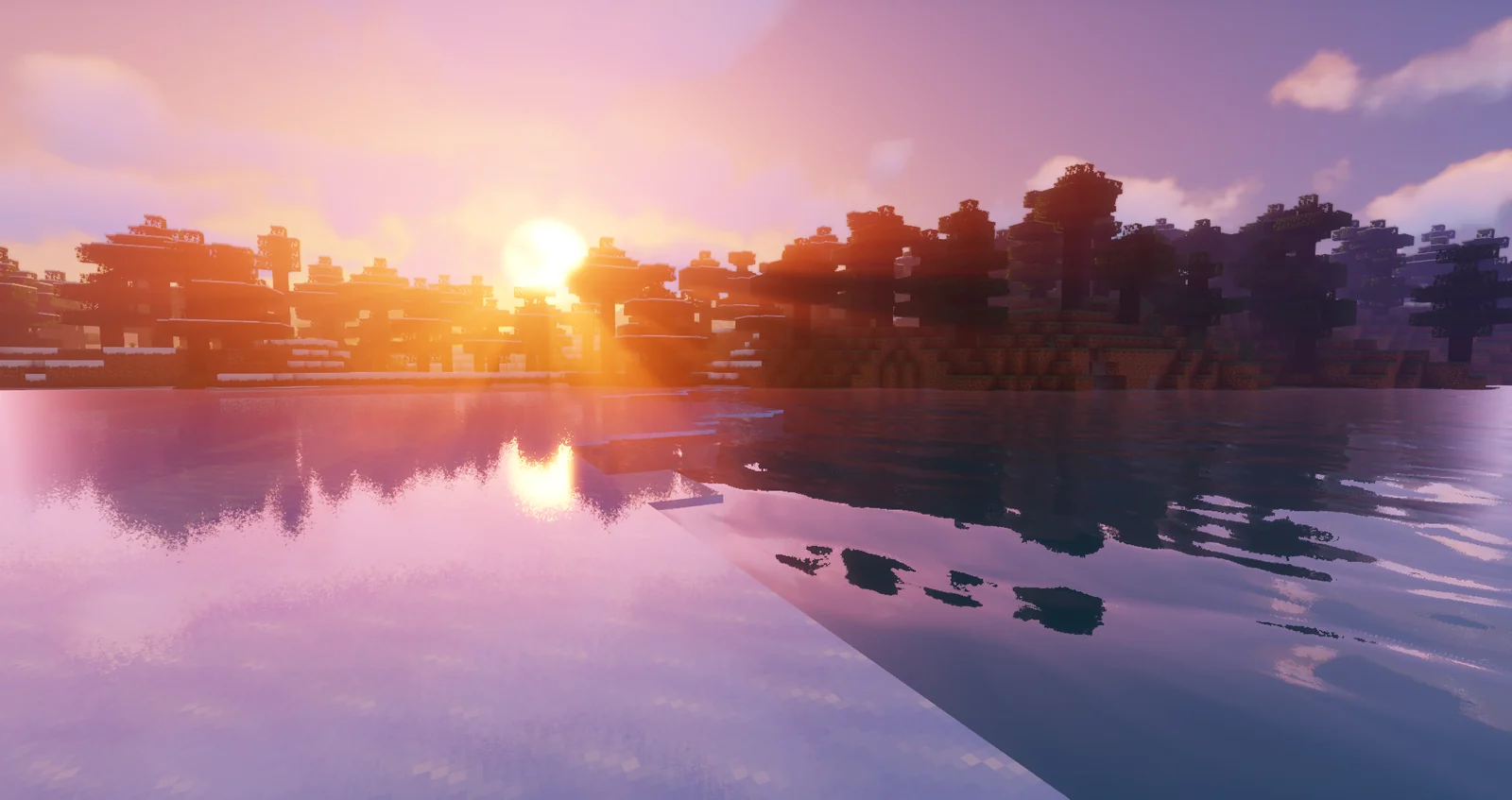
All files below are author-published Modrinth CDN files. The 15-second check shows the exact filename before redirecting.
High-end GPUs
Maximum volumetric lighting
Modern midrange GPUs
High plus motion blur
Recommended starting point
Integrated or older GPUs
Vibrant is Sildur's feature-rich family for players who want Minecraft to look dramatically different. Version 2.02 follows the major 2.0 rendering rewrite and includes options from low-spec Lite through Extreme-VL.
Best for: Screenshots, survival worlds, cinematic lighting, and PCs that can trade frame rate for richer effects.
What you need: Minecraft Java Edition with Iris or OptiFine. Start with Lite or Medium if you do not know your performance budget.
Sildur's Vibrant Shaders spans six presets, so the correct download depends on stable frame time rather than the name of your graphics card alone. Lite removes or reduces demanding effects for integrated and older GPUs. Medium is the balanced starting point for a modern gaming computer. High improves the presentation for stronger hardware, while High-MB pairs that quality tier with motion blur. Extreme raises the visual budget again, and Extreme-VL gives volumetric lighting the greatest emphasis.
Begin with Medium at your normal display resolution and render distance. Test rain, water, dense foliage, caves, sunrise, and the Nether before moving upward. Those scenes stress different parts of Sildur's Vibrant Shaders. If movement feels uneven even when the average FPS looks acceptable, choose Lite or Medium and lower shadow resolution. A stable preset usually looks better during play than an Extreme preset that produces frequent frame-time spikes.
High-MB and Extreme-VL are intentional variants, not automatic upgrades. Motion blur can make camera movement feel smooth but may reduce clarity during building or competitive play. Extreme-VL is useful when dramatic sun shafts matter more than maximum FPS. Standard High or Extreme is the cleaner choice when you want the richer pipeline without those specialized priorities.
For the common Sildur's Vibrant Shaders Lite search, choose Lite from the verified list above instead of an older mirror. If you are testing the best Extreme-VL settings, start from the default preset and lower shadow resolution or volumetric lighting one setting at a time.
Change one setting category at a time. First lower shadow resolution or shadow quality, because shadows affect a large part of the scene. Next reduce volumetric lighting, clouds, reflections, or ambient effects if the preset exposes them. Finally adjust Minecraft render distance and the distance used by Distant Horizons. Changing everything together may raise FPS, but it prevents you from learning which option caused the slowdown.
Measure performance in the same location, weather, time of day, and camera direction. Let chunks finish loading before comparing results. Average FPS alone is not enough: short stalls while turning, entering a new biome, or looking across water are important. Leave some GPU headroom for chunk uploads, recording software, browsers, and modded interfaces instead of tuning Sildur's Vibrant Shaders to use every available resource in a quiet scene.
Display resolution has a direct effect on shader workload. A laptop at 2560 x 1600 can be more demanding than a desktop at 1920 x 1080 even when the desktop has a larger monitor. If the selected preset is almost smooth, lowering render scale or resolution may preserve more of its lighting character than disabling several effects separately.
Download one ZIP from the preset list, then open Minecraft through the profile that contains Iris or OptiFine. Open Video Settings and the Shader Packs or Shaders menu, use the button that opens the shaderpacks folder, and move the ZIP into that folder. Do not extract the archive and do not place it in the resourcepacks or mods folder. Return to Minecraft, select Sildur's Vibrant Shaders, apply it, and allow the world to reload.
When updating from an older release, keep the previous ZIP until version 2.02 has loaded successfully. The two builds can usually remain beside each other because their filenames include versions or presets. Record custom shader options before replacing a build; a rewrite may rename settings or change defaults. Test the update in the same Minecraft profile before using it across multiple instances.
For file verification, select the matching preset in the SHA-512 panel above and compare it with the result from Get-FileHash on Windows or shasum -a 512 on macOS and Linux. A different hash does not automatically prove malware, but it does mean the file is not byte-for-byte identical to the verified release record. Download it again from the listed Modrinth source before installing.
Confirm that the ZIP is directly inside .minecraft/shaderpacks and that Minecraft is running through Iris or OptiFine. An archive nested inside another folder will not appear. The pack also will not show in the resource-pack menu.
Update the GPU driver, match the loader to the exact Minecraft version, and test Sildur's Vibrant Shaders in a clean profile. Disable other renderer modifications before assuming the ZIP is damaged. Review the current known issues in the changelog.
Test a lighter preset, reduce shadow resolution, and lower render distance. Close overlays and recording tools for comparison. If Minecraft uses integrated graphics instead of the dedicated GPU, correct the operating-system graphics preference first.
Yes, the listed files can be downloaded without payment from the author's Modrinth CDN. Free access does not change the All Rights Reserved license, so the files should not be repackaged or redistributed without permission.
The current release lists Iris as a supported loader. Use an Iris build compatible with your Minecraft version, and test a clean Iris and Sodium profile when another rendering mod causes visual errors.
Yes. Match OptiFine to the exact Minecraft Java version. Vibrant release notes mention that fog can look denser in OptiFine than Iris, and older Minecraft releases may lack newer transparency features.
Current release information lists Distant Horizons and Voxy support. Compatibility still depends on using suitable versions together, and the distant renderer adds its own GPU and memory cost.
No. This ZIP targets Minecraft Java Edition shader loaders. Bedrock uses a different rendering and add-on system, so copying the archive into a Bedrock resource-pack folder will not install it.
Release information checked against Modrinth on September 18, 2026. For older builds, use the project version history on Modrinth.